Introduction
Welcome amigo!
I created this wiki just for documenting some of the stuff that I have learnt. I use it as a quick reference to save time and kind of avoid relearning things. This whole wiki is specifically made for myself - so not everything in here is explained in detail and some of the pages may even contain mistakes.
Of course, if you have any questions or spot any mistakes, you are always free to contact me
What's on my Phone
Just some of the apps that I use my phone. I am not including every single one just the apps that I find useful.
Btw, I am an Android user and I use the OnePlus 7 as my daily driver.
-
In short, Raindrop is a cross-platform bookmanager with synchronisation so that I can access my bookmarks anywhere. I discovered Raindrop after watching MKBHD's What's on my Phone video and I really wanted to try it out. After using it for a couple of days, I thought to myself, how did I not use a bookmanager like Raindrop earlier.
I use it to save articles,posts from reddit,memes, youtube video links and much more. Basically, anything I want to refer to later, I just save it to Raindrop.
-
Seal is a video/audio downloader based on yt-dlp. The app is really good. I love how quick and easy to use it is. The UI is pretty awesome too. You can download it from F-droid or directly from GitHub
-
Paisa is a an expense and budget tracker. The app does a pretty good job but I think it is pretty overkill for an expense and budget tracker. I might switch from it to a more simple budget tracker. But until then, I am just going to keep using this app.
-
I use Obsidian for journalling. I love the offline approach of Obsidian and data doesn't leave my device.
-
I play the keyboard (Beginner) at my church and I needed something to keep track of the songs sung by our choir, so I found it really easy to set up a database in notion and also published it as a page on the web.
Push an existing local repository to GitHub
How to push an existing local repository to GitHub
Make sure the default branch name is 'main'.(main is the default branch name in my case.)
-
Create a new repo on GitHub. The repository should be empty.
-
Copy the URL of the repo on GitHub
-
Add the copied URL as remote URL.
git remote add origin REMOTE-URL -
Push the repo
git push origin main
[!WARNING] This content is AI-generated. Verify before relying on it.
Useful Git Commands
A cheat sheet of commonly used Git commands organized by workflow.
Configuration & Identity
View User Name and Email
Check the user identity currently configured for commits:
| Scope | Command |
|---|---|
| Current Repository | git config user.namegit config user.email |
| Global (System User) | git config --global user.namegit config --global user.email |
| View All Configurations | git config --list --show-origin |
Set User Name and Email
# Set globally for all repositories
git config --global user.name "Your Name"
git config --global user.email "you@example.com"

# Set locally for the current repository only
git config user.name "Your Name"
git config user.email "you@example.com"
View Remote URLs
# View remote repository names and fetch/push URLs
git remote -v
Inspecting History & Logs
git log --oneline -5
Shows the last 5 commits formatted on a single line each (abbreviated hash + commit message):
git log --oneline -5
Show Commits by a Specific Author
Filter the commit history to only show commits authored by a specific person (matches name or email substring):
# Filter by author name or email
git log --author="vachan"

# Combine with oneline and limit to 5 commits
git log --author="vachan" --oneline -5
Visual Commit Graph
# Visual ASCII graph of branching and merging
git log --oneline --graph --decorate -10
Viewing Differences (Diffs)
git diff vs git diff --staged
| Command | Compares | What it Shows |
|---|---|---|
git diff | Working directory vs. Staging area (Index) | Unstaged changes you haven't run git add on yet |
git diff --staged(or git diff --cached) | Staging area (Index) vs. Last commit (HEAD) | Changes already staged with git add that will be included in the next commit |
# View unstaged changes
git diff

# View unstaged changes for a specific file
git diff path/to/file.ext

# View staged changes waiting to be committed
git diff --staged
[!TIP] Always run
git diff --stagedbeforegit committo do a final self-review of what is about to be recorded.
Branch Management
Deleting a Branch
| Target | Command | Notes |
|---|---|---|
| Local branch (Safe) | git branch -d <branch-name> | Prevents deletion if branch contains unmerged commits |
| Local branch (Force) | git branch -D <branch-name> | Forces deletion regardless of merge status |
| Remote branch | git push origin --delete <branch-name> | Deletes branch from remote server (GitHub/GitLab) |
# Delete a local merged feature branch
git branch -d feature-login

# Force-delete an abandoned local branch
git branch -D test-experiment

# Delete the branch from the remote repository
git push origin --delete feature-login
Sort Branches by Update Date
List branches ordered by the date of their latest commit (most recently updated branch first):
# Sort local branches by commit date (most recent first)
git branch --sort=-committerdate

# Include human-readable relative dates in the output
git branch --sort=-committerdate --format="%(committerdate:relative)%09%(refname:short)"

# Sort including remote tracking branches
git branch -a --sort=-committerdate
Moving a Commit from One Branch to Another
To move a commit (e.g. abc1234) committed to the wrong branch (branch-A) onto the correct branch (branch-B):
# 1. Switch to the target branch
git checkout branch-B

# 2. Cherry-pick the commit onto branch-B
git cherry-pick abc1234

# 3. Switch back to the original branch
git checkout branch-A

# 4. Remove the commit from branch-A (if it was the most recent commit)
git reset --hard HEAD~1
[!CAUTION] Only use
git reset --hardif you have not pushedbranch-Ato a shared remote repository. If already pushed, usegit revert abc1234instead.
Stashing Changes
Use git stash to set aside uncommitted changes and return to a clean working directory.
# Stash tracked modified files
git stash

# Stash including untracked files with a descriptive message
git stash push -u -m "WIP: navbar redesign"

# List all saved stashes
git stash list
Difference Between git stash pop and git stash apply
| Feature | git stash pop | git stash apply |
|---|---|---|
| Applies changes | Yes | Yes |
| Removes from stash list | Yes (drops stash@{0}) | No (retains entry on the stack) |
| Best used when | You are done with the stash and want it consumed | You want to apply the same stash to multiple branches |
# Apply and delete the latest stash from the list
git stash pop

# Apply changes while keeping the stash intact
git stash apply

# Apply a specific stash from the list without deleting it
git stash apply stash@{2}

# Manually drop a stash entry
git stash drop stash@{0}

# Clear all stashes permanently
git stash clear
Cleaning & Resetting
git clean -fd
Removes untracked files and directories from your working tree.
# 1. Always run a dry run first to preview what would be deleted
git clean -nd

# 2. Force delete untracked files (-f) and untracked directories (-d)
git clean -fd

# Remove untracked files, directories, AND gitignored files
git clean -fdx
[!WARNING]
git clean -fdpermanently deletes untracked files from disk. They cannot be recovered from Git history. Always usegit clean -ndfirst.
Resetting Commits (--soft vs --hard)
# Move HEAD back by 1 commit; all changes remain staged in the index
git reset --soft HEAD~1

# Move HEAD back by 1 commit; all staged and unstaged changes are destroyed
git reset --hard HEAD~1
Commit Shortcut: git commit -am
Stages all modified tracked files and commits them in a single step (does not add newly created untracked files):
git commit -am "Commit message"
Some Tips
-
If you are a CS student, learn how to use git.
-
Don't waste your money on pointless internships and certifications.
-
Doing an internship where you have to pay money out of your pocket is a scam and best not to do it. (Speaking from experience.)
-
First year of Engineering is difficult (But it depends on person to person), study well during this time. Work hard.
-
If you find a subject difficult to understand and you think you are going to fail then ask for help from your friends or go to tuition (there is nothing embarrassing about it). Don't be lazy and fail the subject on purpose.
-
YouTube,ChatGPT & the world wide web are your friends, use the resources available to learn stuff.
-
If you do fail a paper, it is not the end of the world. Work hard and clear the paper in the next semester.
-
Don't get into any stupid fights and don't do anything that might get you suspended from college.
-
Does CGPA matter? Well, the answer can be Yes/No. But if you are looking to get placed, then having a CGPA above 7.5 is good. If you can get your CGPA above 8,even better.
-
Perform well and get good marks on internals or just enough marks to pass internals.
-
Regardless of your branch(CS,Mech,Civil...), It's always to good know a programming language such as Python, C, etc.
-
If you are willing to put in the effort, you can pass sem exams even if you start studying a few days before the exam or during study leave.
-
If you can, try to do an actual internship (like the one where you get paid) in the final year. (I couldn't do it but this is a great thing to do. You will learn a lot.)
-
During placement drives, prepare for aptitude test and practice questions.
-
Having a strong grip over the basics. If you know Python, you should know it's basics too. In technical interviews, you will be asked mostly about the basics.
-
Have a boatload of fun with your friends.
-
You should try using Linux instead of Windows.
Useful Stuff for KTU
A collection of playlists, youtube videos and channels and websites that I use for studying.
Subreddit
r/KTUKerala - unofficial subreddit for KTU Students. It's a decent place for asking questions and having discussions.
Previous Year Questions
- PYQs can be found on PrepKTU
S1 & S2
For first year, I mostly referred to the prescribed textbooks.
Engineering Mechanics
- Learn with Josy
- KTU Engineering Mechanics Textbook
Engineering Physics
S3
DSA (Data Structures & Algorithms)
LSD (Logic System Design)
OOP (Object Oriented Programming) in Java
- Head First Java: A Brain-Friendly Guide This is actually a really good book that I found helpful. All the important concepts are explained in simple language with plenty of examples. The book was pretty fun to read.
S5
FLAT (Finite Language and Automata)
S6
Computer Graphics
Linux
My Linux Journey
1. Debian
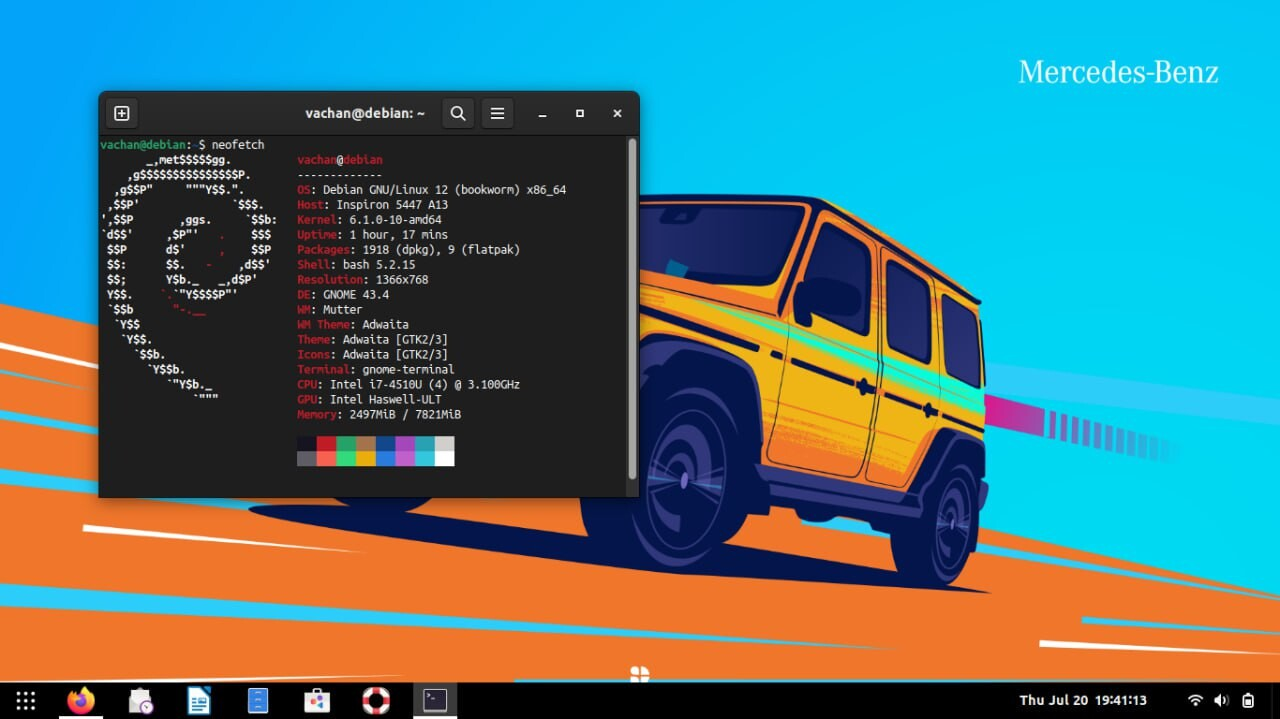
Debian is the first distro that I installed on my computer.
I got tired of Windows 10 and decided to switch to Debian 12 (bookworm) in the month of July of 2023. No dual-boot. Just only Debian.
I used a Dell Inspiron laptop at the time and the hardware worked really.
Not only that Debian is a rock solid distro and I didn't face any big issues while using, everything worked well.
2. Fedora
I think I used Debian Bookworm for a year and when I got my new laptop - A Lenovo Thinkpad E16, I decided to switch to a more up to date distro. So I chose Fedora.
Fedora is a solid distro and my thinkpad worked really well with it.
3. OpenSuse Tumbleweed (Current Distro)
Tumbleweed is what I am using right now.
After trying out Fedora for a while, I decided why not switch to a rolling release distribution. I could have gone with Arch but I thought why not try something different? Opensuse Tumbleweed was something that I had in my mind for a while and I really wanted to try it. So I went ahead and installed it.
Tumbleweed has been pretty good so far and I haven't faced any major issues so far. It's works pretty well considering it is a rolling release.
Desktop Environment
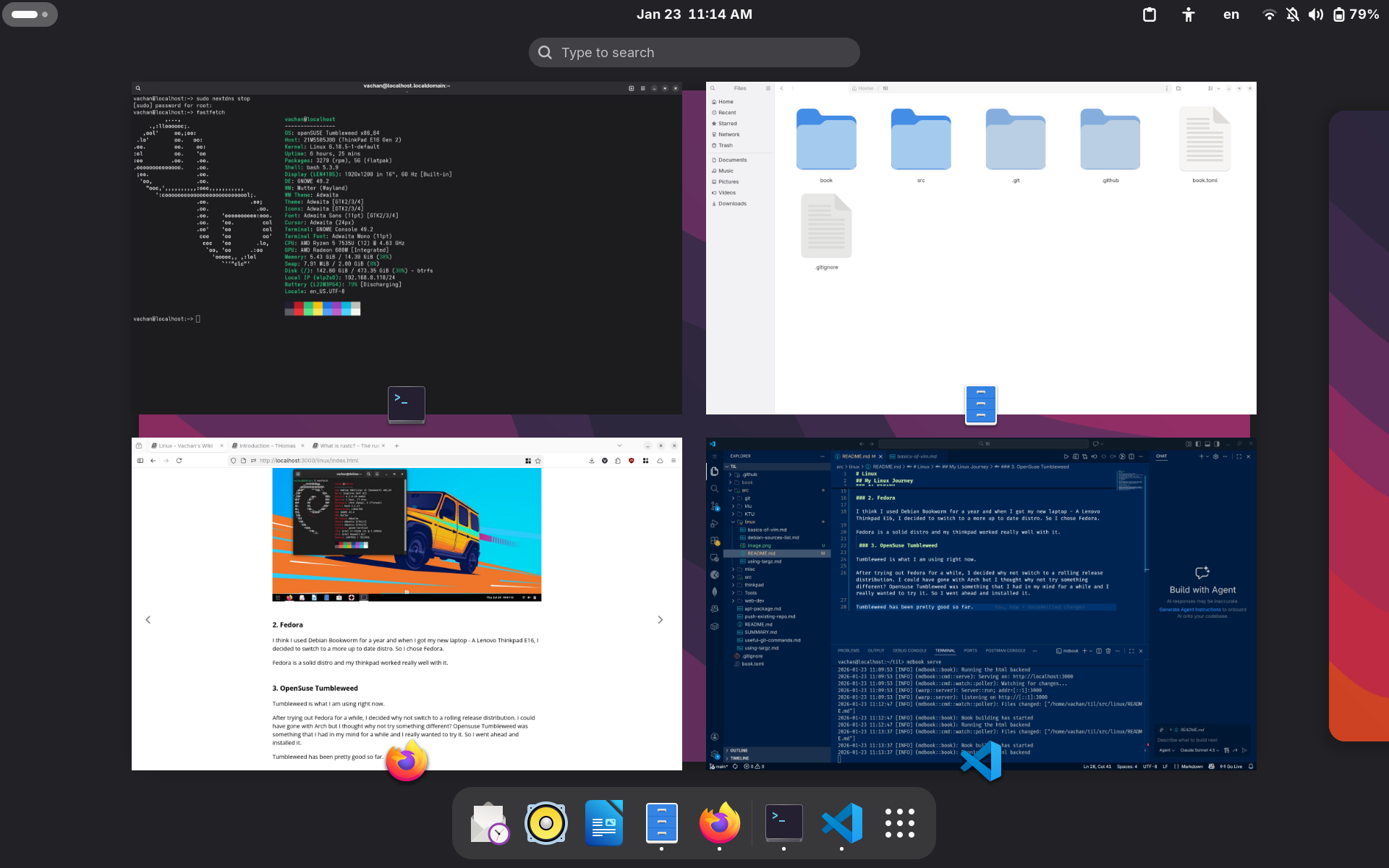
Gnome
Gnome is the desktop environment of my choice. I love how clean, minimal and polished it is. Gnome just looks so good and I love the MacOS style it has.
Yes, I know how a lot of people just hate Gnome and I totally understand you guys. But I love gnome and it's enough for me.
Yes, I have tried KDE Plasma but it's just full of way too many options and customizations that I really don't need. Whenever I installed Plasma, I always felt like going back and installing Gnome.
Yeah so Gnome is my favorite distro.
Using tar.gz
I decided to try out the jetbrains applications. This is how I use the tarball.
Once the file is downloaded, you have to extract the file. The application can be launched by executing the ./bin/ WebStorm.sh script.
But it is much easier to launch the application by adding the directory to the PATH
-
Extract the file
-
Add directory to PATH
nano ~/.bashrcexport PATH=$PATH:/path/to/directory/ -
Reload the shell environment
source ~/.bashrc
apt package manager
Search for a package
To search for a package from the command line, use:
apt-cache search keyword
Show package details
To show package details, use apt show package-name.
Basics of Vim
I just put this here so I can for future reference. Of course, there are many cheatsheets and guides on how to use vim. This is just my personal cheatsheets. I am not planning on adding every command, only just some useful ones.
If you find any mistakes here, please let me know.
Additional Reference
Start
Vim has basically four modes:
- Normal Mode (Command Mode) - the default mode.
- Command Line Mode - Play around with commands
- Insert Mode - for editing the contents of the file
- Visual Mode - for selecting the text.
How to enter each modes?
- Press
Escto enter normal mode. - Press
ito enter insert mode. - Press
vfor visual mode. - Press
:to enter command line mode.
Saving and Quitting
Enter command mode
- Use
:wto save the file - Use
wqto save and quit - Use
q!to exit the file without saving changes made to the file - Use
qif no changes were made.
Cursor Movements
h- to move leftl- to move rightj- move cursor downk- move cursor upG- to move to the last line$- to move to the end of a line
More commands for insert mode
o- insert new line after the current lineO- insert line before the current linea- insert after cursori- insert before cursorA- insert at end of lineI- insert at beginning of line
Undo Redo
u- UndoCtrl+R- for redo
Set line numbers or relative line numbers
set number- to display line numbersset relativenumber- to display relative line number
Debian Mirrors
The sources file is located at /etc/apt/sources.list. More info on the sources.list file can be found on the Debian Wiki.
Mirrors that I use:
More mirrors can be found on the Free Software Mirrors in India page.
Check if port is in use
To check which ports are in use and find which application is listening to which port. Use the following command:
sudo ss -tulpn | grep LISTEN
The command options are:
-t:TCP Ports-u: UDP Ports-l: listening sockets-p: process using the port
Thinkpad
I use a Lenovo ThinkPad E16 Gen 2 (AMD) with Fedora as my Operating System.
Operating System
- Fedora 41 Workstation
- GNOME Desktop
Specifications
- Processor AMD Ryzen™ 5 7535U Processor (2.90 GHz up to 4.55 GHz)
- Graphic Card Integrated AMD Radeon™ 660M
- Memory 16 GB DDR5-4800MHz (SODIMM)
- Storage 512 GB SSD M.2 2242 PCIe Gen4 TLC Opal
- Display 40.64cms (16) WUXGA (1920 x 1200)
- IPS, Anti-Glare, Non-Touch, 45%NTSC, 300 nits, 60Hz
- Camera 720P HD RGB with Microphone and Privacy Shutter
- Battery 3 Cell Li-Polymer 47Wh
- WIFI Realtek 8852BE WIFI 6 2x2ax + BT5.x & Bluetooth® 5.1 or above
More information can be found in the PSREF
Charging Thresholds
To extend the lifespan of your battery, you can define charging thresholds.
A ThinkPad battery can be set for maximum runtime (hours), or for maximum lifespan (years).
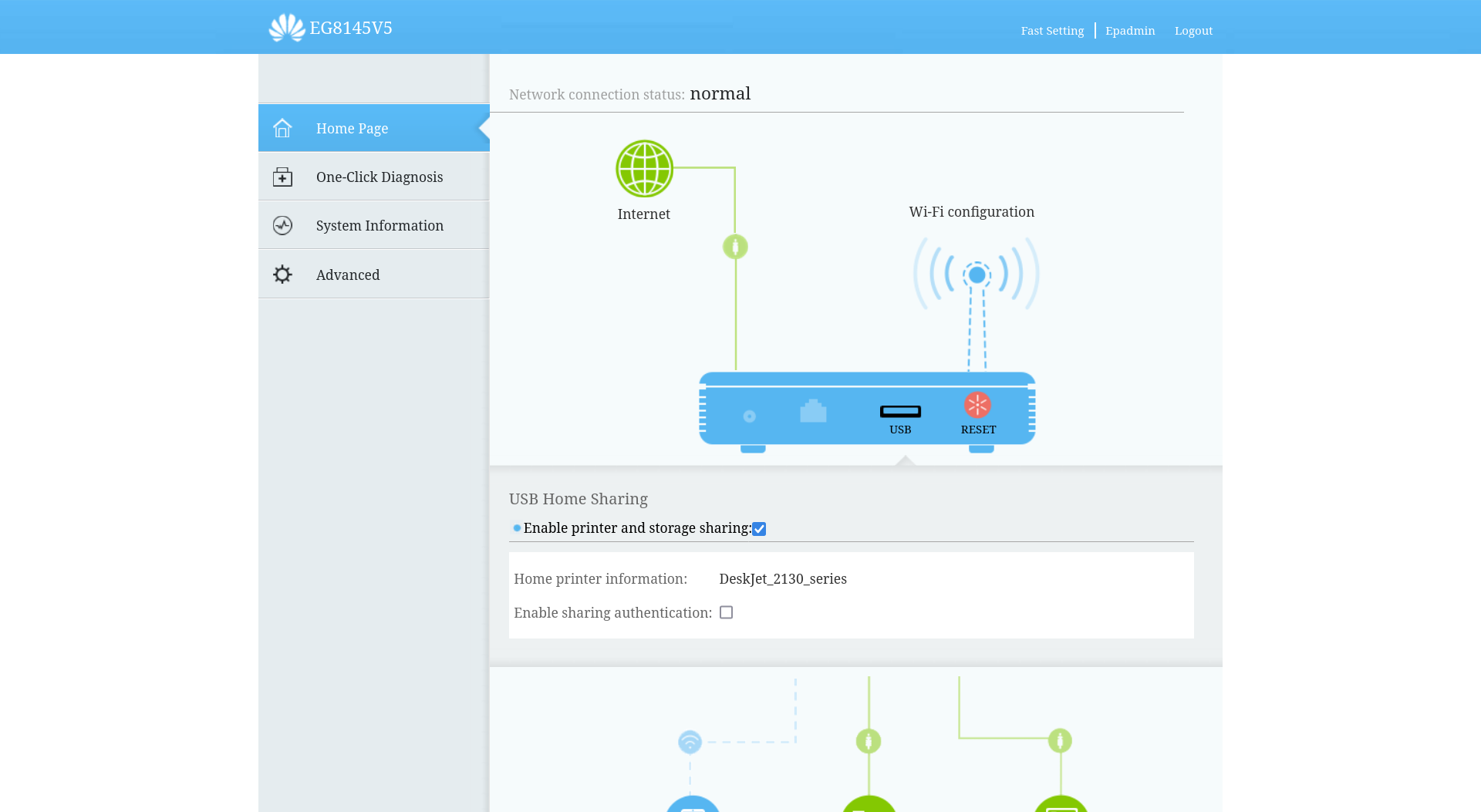
Setting the Charging Thresholds
Source: Reddit
-
You can set the charging start threshold in (At what value or below should charging start):
/sys/class/power_supply/BAT0/charge_start_threshold -
You can set the charging stop threshold in (At what value charging should stop):
/sys/class/power_supply/BAT0/charge_stop_threshold -
I have set the start threshold at 75 and stop threshold at 80 on my laptop
Optimizing for runtime (hours)
Source: Lenovo
The normal default Lenovo Power Manager Battery Maintenance setting keeps the battery fully charged. The setting starts charging when the battery drops below 96%, and stops at 100%. The battery runtime depends on the Power Plan settings.
Optimizing for lifespan (years)
Source: Lenovo
For maximum lifespan when rarely using the battery, set Custom charge thresholds to start charging at 40% capacity and stop at 50%, and keep the ThinkPad cool. The thresholds can be adjusted in the Battery Maintenance settings of Lenovo Power Manager.
If the battery is used somewhat frequently, set the start threshold at around 85% and stop at 90%. This will still give a good lifespan benefit over keeping the battery charged to 100%.
Swap Fn and Ctrl Key
On thinkpads for some reason, the function and control keys are in a different position. I have no clue why Lenovo does this.
Anyway, if you prefer, you can swap the keys by using the BIOS. Please refer this article by Lenovo to swap the function and control keys.
Linux Installation
You can install any distribution on your laptop. In my opinion, it is better to go with Fedora or Ubuntu to make sure the hardware works as intended.
Update System and BIOS
- Before getting rid of Windows, update the BIOS using Lenovo Vantage software. For more information, visit Lenovo's website
Disable Bitlocker Encryption
If BitLocker encryption is enabled, please disable it before following the below steps.
You must disable bitlocker encryption to install Linux and backup your keys
- Lenovo Bitlocker Encryption Page
- Guide from Lenovo on how to disable bitlocker encryption
- Guide from Its FOSS - This guide also contains on how you can backup your recovery key
Secure Boot
What is Secure Boot?
UEFI Secure boot is a verification mechanism for ensuring that code launched by firmware is trusted. More info can be found in the Ubuntu Wiki
Enable Secure Boot
Source of Instructions: Lenovo
- Reboot your PC
- Boot into the BIOS setup menu by pressing the F1 key when the Lenovo logo is displayed
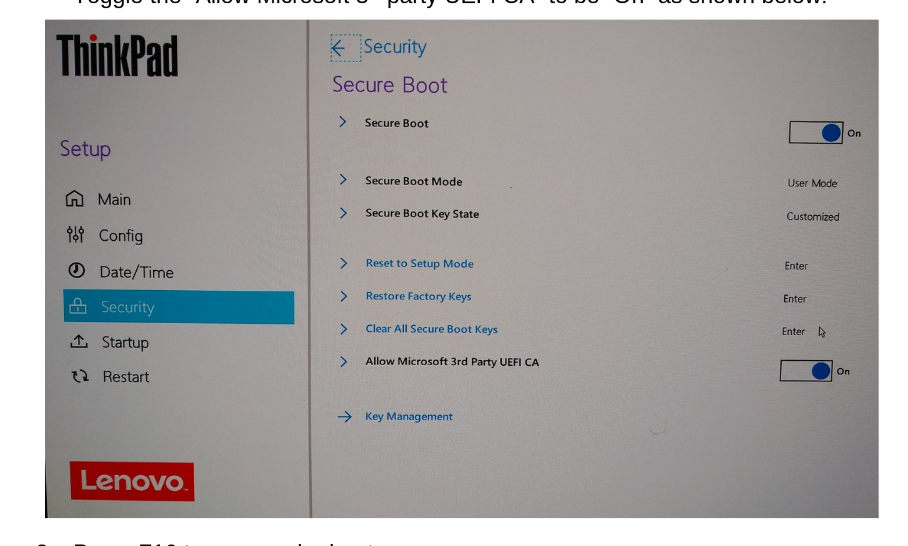
- In the BIOS menu select the “Security” option and the “Secure Boot” sub-menu. Toggle the “Allow Microsoft 3rd party UEFI CA” to be “On” as shown below.
- Press F10 to save and reboot
Linux Install
- Flash the ISO on to a USB using Rufus, Balena Etcher or the software of your choice (Since I use Fedora, I used Fedora Media Writer)
- Take your freshly written USB key and insert it in the powered down installation platform.
- Power on the device and press F12 during early boot to enter the Boot Menu.
- Navigate down to the USB HDD device and press Enter.
- Select the appropriate option from the GRUB Menu (In my case it was Test this media & start Fedora-Workstation-Live.)
Updating the BIOS
Please also refer to the references used to write these instructions
But on Linux distributions, Lenovo Vantage is not supported and since Thinkpad 16 G2 (AMD) is not Linux certified, you cannot get udate the BIOS using fwupd.
You can manually update the BIOS by downloading the image and flashing it on to a USB Drive.
-
Download the BIOS image from Lenovo Support. Make sure you choose the correct model. You should download the CD ISO image.
-
Download geteltorito
-
Change directory to geteltorito
-
Set permissions by using the below command
chmod +x ./geteltorito.pl -
Extract the bootable image from the ISO:
./geteltorito.pl -o bios.img iso_file.iso
sudo dd if=bios.img of=/dev/sdb
You now have a bootable USB drive.
Secure boot must be disabled it for the computer to boot the USB drive
ffmpeg
-
Convert all the files in a particular directory to another format
- For Linux and macOS this can be done in one line, using parameter expansion to change the filename extension of the output file
for i in *.avi; do ffmpeg -i "$i" "${i%.*}.mp4"; done
- For Linux and macOS this can be done in one line, using parameter expansion to change the filename extension of the output file
scrcpy
scrcpy (screen copy) is a tool used for mirroring and controlling your Android device via ADB. I found this tool particularly useful when I cracked the display on my phone and touch did not work properly.
To use scrcpy, you will need to enable USB Debugging on your device
You can download scrcpy from GitHub. To install it on Linux, see the following page.
- To control the device using your keyboard and mouse (without Android Debugging). Use the following command.
scrcpy --otg
- To mirror the device and control the device, simply run the following command
scrcpy
- Use with the screen off
scrcpy --turn-screen-off --no-cleanup
Screenshot

ytdlp
-
Download a video from YouTube as mp3
yt-dlp --audio-format mp3 --add-metadata https://www.youtube.com/watch?v=r5PtlHs9igM -
Download video without audio
yt-dlp youtube_link -F
pdftk
Merge Multiple PDFs into a single PDF
pdftk file1.pdf file2.pdf cat output output.pdf
Syncthing
I use syncthing to sync files between devices.
Note: On mobile, make sure syncthing is actually running. I was puzzled to find why syncthing wasn't running on my phone after I had installed it. Since battery saving mode was ON, the service hadn't actually started running. Just keep this in mind, if syncthing doesn't actually connect or sync properly.
Syncthing supports encryption for folders shared with devices. The data in the folder will be encrypted using a password and also can be decrypted using the same password.
For more info, refer to the syncthing docs
For decrypting the folder, use the command:
syncthing decrypt --to <plaintext-destination> --password <your-password> <encrypted-folder-path>
systemd
Start a service
systemctl start <service-name>
Stop a service
systemctl stop <service-name>
Restart a service
systemctl restart <service-name>
Reload a service
systemctl reload <service-name>
Enable service at boot
systemctl enable <service-name>
Disable service at boot
systemctl disable <service-name>
VS Code
VS Code is the text Editor of my choice.
Extensions I use
CSS
Improving CSS Reset
How you can make your site a little bit more better by using the css below. Source
h1,
h2,
h3,
h4,
h5,
h6 {
  text-wrap: balance;
}

p,
li,
figcaption {
  text-wrap: pretty;
  max-width:65ch;
}
Dark Theme
How to add dark theme to a website using only css.
@media (prefers-color-scheme: dark) {
  img {
    opacity: .75;
    transition: opacity .5s ease-in-out;
  }
  img:hover {
    opacity: 1;
  }
}
Virtual Environment (venv)
Linux
I sometimes forget how to create a virtual environment when workinng on something.
To create a venv on Linux:
python3 -m venv venv
To activate the venv:
source venv/bin/activate
To deactivate the venv:
deactivate
Create a venv for a particular python version
Just specify the version number that's all.
python3.10 -m venv venv
Working with Coding Agents (Codex)
[!NOTE] Notes summarized from the OpenAI Getting Started with Codex crash course.
[!WARNING] This content was generated and structured using AI. Please review and verify commands against your project's environment.
Agent Collaboration Lifecycle
Working effectively with coding agents follows a disciplined five-phase loop:
- Prompt: Provide a clear goal, relevant context pointers, constraints, and completion criteria.
- Inspect: Explore how the repository works and establish a safe baseline check before editing.
- Act: Review the plan, implement a bounded change, and steer the agent when drift occurs.
- Validate: Run focused tests, execute quality checks, and manually verify the experience.
- Report: Review the diff and generate an evidence-based developer handoff.
1. Exploring Unfamiliar Codebases
When opening a new or unfamiliar repository, explore before modifying code.
6 Essential Exploration Questions
- How the application is structured.
- Which files manage state and controls.
- How to run the application (development commands).
- Which tests and validation commands are available.
- Which files need to change for the target feature.
- What assumptions, risks, or missing information exist.
Example: Codebase Exploration Prompt
Inspect this repository without making any changes.

Explain:
1. How the application is structured.
2. Which files manage the game’s state and controls.
3. How to run the application.
4. Which tests or validation commands are available.
5. Which files may need to change to add pause and resume controls.
6. Any assumptions, risks, or missing information.
Establishing a Safe Baseline
Before requesting code changes, run existing validation commands to establish an operational baseline:
- Passing baseline: Confirms the environment is healthy before new code is introduced.
- Failing baseline: Helps separate pre-existing bugs from regressions introduced by the agent.
- Visual applications: Baseline feedback should include unit tests for state logic, the dev server command, and a brief manual interface check.
- Libraries: Baseline feedback should include targeted tests, linter, type checks, and build commands.
2. Context Management & Scoping
- Scope to one feature: Keep the agent focused on a single bounded problem per session.
- Start fresh threads: When pivoting to another task or feature, start a new chat/thread to avoid context pollution and token bloat.
- Supply only necessary context: Include only the files, errors, and constraints relevant to the immediate task.
3. Reusable Guidance with AGENTS.md
An AGENTS.md file captures recurring project instructions and expectations so you do not have to repeat them in every prompt. It keeps human-facing README.md files clean of agent-specific trivia.
Key Contents to Include
- Important directories and application components.
- Exact commands for running the app, linting, building, and running tests.
- Coding conventions and architectural patterns.
- Protected files and security requirements (files never to edit).
- Verification steps required before completing a task.
Example: Repository AGENTS.md
# Project guidance
- Run the application with `pnpm dev`.
- Run automated tests with `pnpm test`.
- Follow existing patterns for game state, interface components, and user interactions.
- Keep changes focused on the requested feature and avoid unrelated modifications.
- Preserve existing scoring, reset behavior, and application styling.
- Add or update tests when changing application behavior.
- Run the relevant checks and report any issues before marking a task complete.
Layered Guidance Hierarchy
Guidance can be layered across scopes:
- Global Guidance (
~/.codex/AGENTS.md): Applies across all projects on your machine. - Repository Guidance (
<root>/AGENTS.md): Applies to the entire codebase. - Folder Guidance (
<folder>/AGENTS.md): Applies when the agent works inside a specific subdirectory (e.g.frontend/AGENTS.md).
Precedence Rule: Guidance closer to the current working directory overrides broader guidance. An
AGENTS.override.mdfile can completely replace the standardAGENTS.mdat that level when an explicit override is required.
4. Making Workflows Executable
An agent can only self-correct if the repository provides executable feedback.
5 Steps to an Executable Development Path
- Document setup: Clear instructions to install dependencies and run the app.
- Provide focused tests: Fast, targeted tests for core state and logic.
- Expose quality tooling: Make linting, formatting, type-checking, and build commands readily available.
- Detail environment fixtures: Document environment variables, test services, and seed data without committing secrets.
- Define manual verification paths: Clear instructions for verifying UI and behaviors not covered by automated tests.
5. Defining Tasks (The 4-Part Task Brief)
Structure task requests into four distinct sections:
- Goal: State the behavior to add, change, or fix, and why it matters.
- Context pointers: Point to relevant files, errors, examples, or screenshots to inspect first.
- Constraints: Define what must remain unchanged, which patterns to follow, and scope boundaries.
- Done when: Specify observable behaviors and the exact checks that must pass.
Example: 4-Part Task Brief Prompt
Goal:
Add pause and resume controls to the game.

Context pointers:
Before making changes, inspect how the application manages game state and handles existing controls.

Constraints:
Follow the repository’s existing patterns. Do not change scoring, reset behavior, or unrelated styling.

Done when:
The task is complete when the game pauses and resumes correctly, repeated pause-and-resume cycles work, and the relevant tests pass.
6. Planning Mode (/plan) & Steering
When to Use Plan Mode
Use /plan before editing when the task:
- Is ambiguous or underspecified.
- Touches multiple components across the codebase.
- Involves unfamiliar code or dependencies.
- Carries meaningful security or regression risks.
- Has more than one valid architectural approach.
Steering Active Work
If the agent begins drifting into unnecessary refactoring or unrelated styling changes, intervene early rather than restarting:
Keep the existing interface and add the pause and resume controls using the current component patterns. Avoid unrelated design changes and continue with the original plan.
7. The Validation Stack & Iteration
Validate changes using a multi-tiered stack, starting with checks closest to the modification:
The 3-Tier Validation Stack
- Focused Tests: Verify that unit and state transitions behave as intended (e.g., pausing transitions state correctly, resuming restores progress).
- Relevant Quality Checks: Run type checks, linters, and build commands to confirm no collateral syntax or type breakages.
- Manual Verification: Test interactive user flows, UI synchronization, and confirm nearby behaviors (e.g., reset, score counters) remain intact.
Investigating Failures as Evidence
When a test fails:
- Treat the failure as diagnostic evidence, not a prompt to blindly hack tests.
- Determine whether the cause is in the implementation, the test assertion, the environment, or an unclear requirement.
- Require the agent to identify the root cause before applying fixes.
8. Review & Evidence-Based Developer Handoff
Diff Review (/review)
Perform a second-pass review of the diff before accepting changes.
Review the pause-and-resume changes against the original task and implementation plan.

Check whether:
- The requested behavior works as intended.
- The changes remain within the agreed scope.
- Existing project patterns were followed.
- Relevant tests cover the new behavior.
- Scoring, reset behavior, and unrelated styling remain unchanged.
- Any security concerns or unresolved risks require attention.

Summarize the most important findings without making additional changes.
Evidence-Based Developer Handoff
Prepare a structured handoff summarizing concrete results:
Prepare an evidence-based developer handoff for this change.
Include:
- a concise summary of the PM request
- what changed and which files were affected
- exact automated commands and results
- browser and manual checks with results
- review findings and how each was handled
- anything unverified
- remaining risks or follow-up work
- the recommended next step

Separate observed evidence from assumptions or confidence statements.
Do not modify files.
9. Four Core Engineering Decisions
Retain engineering judgment by applying these four core principles:
- Start with repository evidence: Inspect existing files, patterns, and run baseline commands before choosing an implementation strategy.
- Define success before implementation: Formulate the 4-part brief (Goal → Context → Constraints → Done criteria) and identify what must be observed to accept the change.
- Guide the work within the boundary: Constrain the agent's working surface, review plans when uncertain, and steer specific drift promptly.
- Accept based on evidence: Evaluate using the 6-point checklist:
- Correctness: Did the feature work as intended?
- Scope: Did changes stay bounded?
- Fit: Were existing patterns maintained?
- Coverage: Are critical paths covered by tests?
- Security: Are there any new vulnerabilities or exposed secrets?
- Uncertainty: Are any unverified behaviors explicitly declared?
[!WARNING] This content is AI-generated. Verify before relying on it.
Laravel
Laravel is an expressive, elegant PHP web application framework utilizing the MVC (Model-View-Controller) architectural pattern.
Topic Index
| Topic | Description |
|---|---|
| Artisan Commands | Daily CLI reference for generators, database, routing, and cache optimization |
| Migrations & Seeding | Database schema version control, column modifiers, seeders, and factories |
| Form Requests & Validation | Dedicated request validation classes, common rules, and controller integration |
| Mailer | Mailables, envelopes, content, attachments, and email queueing |
| Task Scheduling | Managing scheduled cron tasks in code, execution frequencies, and local workers |
| Authorization & Policies | Resource authorization, Gates vs Policies, and Blade/Controller checks |
Standard Directory Structure
| Path | Purpose |
|---|---|
app/Models/ | Eloquent ORM models |
app/Http/Controllers/ | HTTP controllers handling incoming requests |
app/Http/Requests/ | Form Request validation and authorization classes |
app/Policies/ | Authorization policies mapped to models |
app/Mail/ | Mailable classes for email generation |
database/migrations/ | Schema definition files executed in order |
database/seeders/ | Database seeders for test and initial data |
database/factories/ | Model factories for generating fake test data |
routes/web.php | Stateful web routes (cookies, session, CSRF) |
routes/api.php | Stateless API routes with token/sanctum authentication |
routes/console.php | Artisan console commands and scheduled tasks (Laravel 11+) |
resources/views/ | Blade templates |
[!WARNING] This content is AI-generated. Verify before relying on it.
Common Artisan Commands
Artisan is the command-line interface included with Laravel. It provides commands for generating boilerplate, running database migrations, managing caches, and inspecting application state.
Make / Generator Commands
Creating Models
| Command | Description |
|---|---|
php artisan make:model Post | Creates a basic Eloquent model |
php artisan make:model Post -m | Model + migration |
php artisan make:model Post -c | Model + controller |
php artisan make:model Post -cr | Model + resource controller |
php artisan make:model Post -mcr | Model + migration + resource controller |
php artisan make:model Post -s | Model + seeder |
php artisan make:model Post -f | Model + factory |
php artisan make:model Post -a | Model + migration + factory + seeder + policy + resource controller + form requests (--all) |
php artisan make:model RoleUser --pivot | Creates a custom pivot model |
Creating Controllers
| Command | Description |
|---|---|
php artisan make:controller PostController | Basic empty controller |
php artisan make:controller PostController --resource | Controller with CRUD actions (index, create, store, show, edit, update, destroy) |
php artisan make:controller PostController --resource --model=Post | Resource controller with typed model route-binding |
php artisan make:controller Api/PostController --api | API resource controller (omits HTML create and edit methods) |
php artisan make:controller ProvisionServer --invokable | Single action controller with __invoke() |
Creating Other Core Classes
| Command | Description |
|---|---|
php artisan make:migration create_posts_table | Generates a new migration file |
php artisan make:request StorePostRequest | Generates a Form Request validation class |
php artisan make:policy PostPolicy --model=Post | Generates a Policy class mapped to a model |
php artisan make:mail WelcomeUser | Generates a Mailable class |
php artisan make:mail OrderShipped --markdown=emails.orders.shipped | Mailable with a Markdown Blade template |
php artisan make:seeder PostSeeder | Generates a database seeder |
php artisan make:factory PostFactory --model=Post | Generates a model factory |
php artisan make:middleware EnsureTokenIsValid | Generates custom HTTP middleware |
php artisan make:job ProcessPodcast | Generates a queueable job |
Database Migrations & Seeding
| Command | Description |
|---|---|
php artisan migrate | Run pending migrations |
php artisan migrate:status | Show migration execution status and batches |
php artisan migrate:rollback | Rollback the last migration batch |
php artisan migrate:rollback --step=2 | Rollback the last 2 migrations |
php artisan migrate:reset | Rollback all database migrations |
php artisan migrate:refresh | Rollback all migrations and run them again |
php artisan migrate:refresh --seed | Rollback all, re-run, and seed database |
php artisan migrate:fresh | Drop all tables and execute all migrations from scratch |
php artisan migrate:fresh --seed | Drop all tables, run all migrations, and run seeders |
php artisan db:seed | Run the root DatabaseSeeder |
php artisan db:seed --class=UserSeeder | Run a specific seeder class |
[!CAUTION] Never run
migrate:freshin production. It drops all tables and destroys data permanently.
Optimization & Caching
Use caching in production to boost performance by eliminating runtime file scanning and route parsing.
| Command | Description |
|---|---|
php artisan optimize | Caches bootstrap files, configuration, and routes |
php artisan optimize:clear | Clears all cached bootstrap files, config, routes, views, and events |
php artisan route:cache | Compiles all routes into a single cached file |
php artisan route:clear | Deletes the compiled route cache |
php artisan config:cache | Merges all config files into a single cached file |
php artisan config:clear | Deletes the compiled configuration cache |
php artisan view:cache | Pre-compiles all Blade templates |
php artisan view:clear | Clears compiled Blade view files |
php artisan cache:clear | Flushes the application data cache (Redis/Memcached/file) |
php artisan event:cache | Caches discovered events and listeners |
php artisan event:clear | Clears the event cache |
[!TIP] During local development, run
php artisan optimize:clearif route or configuration changes fail to reflect.
Routing & Inspection
| Command | Description |
|---|---|
php artisan route:list | Lists all registered application routes |
php artisan route:list --path=api | Filters routes by URI path |
php artisan route:list --except-vendor | Excludes vendor-registered routes |
php artisan about | Displays environment, PHP version, cache drivers, and framework details |
Development & Maintenance
| Command | Description |
|---|---|
php artisan serve | Starts local PHP development server (http://127.0.0.1:8000) |
php artisan serve --port=8080 | Starts server on a specified port |
php artisan tinker | Interactive REPL shell powered by PsySH |
php artisan down | Puts the application into maintenance mode |
php artisan down --secret="bypass-token" | Enables maintenance mode with a bypass cookie |
php artisan up | Brings the application out of maintenance mode |
php artisan queue:work | Starts processing queued jobs |
php artisan schedule:work | Runs the task scheduler locally (daemon mode for local dev) |
[!WARNING] This content is AI-generated. Verify before relying on it.
Database Migrations & Seeding
Migrations are version control for database schemas. They allow a team to define, modify, and share database structure definitions across environments using PHP.
Generating Migrations
# Create a new table
php artisan make:migration create_posts_table

# Modify an existing table
php artisan make:migration add_status_to_posts_table --table=posts
Migration Structure
Migrations live in database/migrations/ and contain up() and down() methods:
use Illuminate\Database\Migrations\Migration;
use Illuminate\Database\Schema\Blueprint;
use Illuminate\Support\Facades\Schema;

return new class extends Migration
{
    public function up(): void
    {
        Schema::create('posts', function (Blueprint $table) {
            $table->id();
            $table->foreignId('user_id')->constrained()->cascadeOnDelete();
            $table->string('title');
            $table->string('slug')->unique();
            $table->text('body');
            $table->boolean('is_published')->default(false);
            $table->timestamp('published_at')->nullable();
            $table->timestamps();
            $table->softDeletes();
        });
    }

    public function down(): void
    {
        Schema::dropIfExists('posts');
    }
};
Common Column Types
| Column Definition | Database Equivalent |
|---|---|
$table->id(); | BIGINT UNSIGNED AUTO_INCREMENT PRIMARY KEY |
$table->string('name', 255); | VARCHAR(255) |
$table->text('content'); | TEXT |
$table->longText('payload'); | LONGTEXT |
$table->integer('votes'); | INT |
$table->unsignedBigInteger('account_id'); | BIGINT UNSIGNED |
$table->decimal('price', 8, 2); | DECIMAL(8, 2) |
$table->boolean('is_active'); | TINYINT(1) / BOOLEAN |
$table->json('metadata'); | JSON |
$table->timestamp('activated_at'); | TIMESTAMP |
$table->timestamps(); | Adds created_at and updated_at |
$table->softDeletes(); | Adds deleted_at for soft delete support |
Common Column Modifiers
$table->string('email')->nullable();           // Allows NULL values
$table->string('role')->default('subscriber'); // Default value
$table->string('username')->unique();          // Unique index
$table->string('category')->index();           // Standard index
$table->string('subtitle')->after('title');    // Place column after existing one (MySQL)
Foreign Key Constraints
Modern Laravel syntax uses concise foreign ID helpers:
// Shorthand for user_id referencing id on users table with cascade delete
$table->foreignId('user_id')->constrained()->cascadeOnDelete();

// Nullable foreign key that sets null on delete
$table->foreignId('category_id')->nullable()->constrained()->nullOnDelete();

// Manual foreign key definition
$table->unsignedBigInteger('author_id');
$table->foreign('author_id')->references('id')->on('users')->onDelete('cascade');
Modifying Existing Tables
When modifying an existing table, specify changes in up() and reverse them in down():
public function up(): void
{
    Schema::table('posts', function (Blueprint $table) {
        $table->string('subtitle')->nullable()->after('title');
        $table->renameColumn('body', 'content');
    });
}

public function down(): void
{
    Schema::table('posts', function (Blueprint $table) {
        $table->dropColumn('subtitle');
        $table->renameColumn('content', 'body');
    });
}
Seeders & Model Factories
Seeders populate database tables with dummy or initial data (e.g. admin accounts, lookups).
1. Generating Seeders & Factories
php artisan make:seeder PostSeeder
php artisan make:factory PostFactory --model=Post
2. Defining a Factory (database/factories/PostFactory.php)
namespace Database\Factories;

use App\Models\User;
use Illuminate\Database\Eloquent\Factories\Factory;

class PostFactory extends Factory
{
    public function definition(): array
    {
        return [
            'user_id' => User::factory(),
            'title' => fake()->sentence(),
            'slug' => fake()->unique()->slug(),
            'body' => fake()->paragraphs(3, true),
            'is_published' => fake()->boolean(80),
        ];
    }
}
3. Calling Seeders in database/seeders/DatabaseSeeder.php
namespace Database\Seeders;

use App\Models\User;
use App\Models\Post;
use Illuminate\Database\Seeder;

class DatabaseSeeder extends Seeder
{
    public function run(): void
    {
        // Create an explicit admin user
        User::factory()->create([
            'name' => 'Admin User',
            'email' => 'admin@example.com',
        ]);

        // Generate 20 dummy posts with related users
        Post::factory(20)->create();

        // Or invoke specific seeder classes
        $this->call([
            RoleSeeder::class,
        ]);
    }
}
Running Migrations & Seeders
# Run pending migrations
php artisan migrate

# Run database seeders
php artisan db:seed

# Run a specific seeder class
php artisan db:seed --class=PostSeeder

# Roll back the last batch of migrations
php artisan migrate:rollback

# Drop all tables, re-run all migrations, and run seeders
php artisan migrate:fresh --seed
[!TIP]
php artisan migrate:fresh --seedis the most common command during local development to reset the database to a clean, populated state.
[!CAUTION] Avoid
migrate:freshin production environments as it completely wipes existing tables and records.
[!WARNING] This content is AI-generated. Verify before relying on it.
Form Requests & Validation
Form Requests are dedicated HTTP request classes that encapsulate authorization and validation logic. They keep controllers lean and ensure input data is authorized and validated before controller methods execute.
Generating a Form Request
php artisan make:request StorePostRequest
Files are stored in app/Http/Requests/.
Form Request Anatomy
namespace App\Http\Requests;

use Illuminate\Foundation\Http\FormRequest;
use Illuminate\Support\Str;

class StorePostRequest extends FormRequest
{
    /**
     * Determine if the user is authorized to make this request.
     */
    public function authorize(): bool
    {
        // Return true to allow, or check policy / user permissions
        return $this->user() !== null;
    }

    /**
     * Modify input data before validation rules run.
     */
    protected function prepareForValidation(): void
    {
        $this->merge([
            'slug' => Str::slug($this->input('title')),
        ]);
    }

    /**
     * Get the validation rules that apply to the request.
     */
    public function rules(): array
    {
        return [
            'title'       => ['required', 'string', 'max:255'],
            'slug'        => ['required', 'string', 'unique:posts,slug'],
            'category_id' => ['required', 'integer', 'exists:categories,id'],
            'content'     => ['required', 'string', 'min:20'],
            'tags'        => ['nullable', 'array'],
            'tags.*'      => ['string', 'max:30'],
            'cover_image' => ['nullable', 'image', 'mimes:jpeg,png,webp', 'max:2048'],
        ];
    }

    /**
     * Custom validation error messages.
     */
    public function messages(): array
    {
        return [
            'category_id.exists' => 'The selected category does not exist.',
            'cover_image.max'    => 'Cover image size must not exceed 2MB.',
        ];
    }

    /**
     * Custom attribute names for validation errors.
     */
    public function attributes(): array
    {
        return [
            'category_id' => 'category',
        ];
    }
}
[!NOTE] If
authorize()returnsfalse, Laravel automatically halts execution and returns an HTTP403 Forbiddenresponse.
Controller Usage
Type-hint the Form Request in your controller action. Validation runs automatically before entering the method body:
namespace App\Http\Controllers;

use App\Http\Requests\StorePostRequest;
use App\Models\Post;
use Illuminate\Http\RedirectResponse;

class PostController extends Controller
{
    public function store(StorePostRequest $request): RedirectResponse
    {
        // Retrieve all validated data (excludes unvalidated input fields)
        $validated = $request->validated();

        // Retrieve a specific subset of validated data
        $data = $request->safe()->only(['title', 'slug', 'content']);

        $post = Post::create($validated);

        return redirect()->route('posts.show', $post)
            ->with('success', 'Post created successfully!');
    }
}
Common Validation Rules
| Rule | Description | Example |
|---|---|---|
required | Field must be present and not empty | 'title' => 'required' |
nullable | Field can be null; validation rules only run if value exists | 'bio' => 'nullable\|string' |
string / integer / boolean / array | Type checks | 'age' => 'integer' |
email | Valid email address format | 'email' => 'required\|email' |
unique:table,column | Value must not exist in specified table/column | 'email' => 'unique:users,email' |
exists:table,column | Value must exist in database table | 'role_id' => 'exists:roles,id' |
min:value / max:value | Minimum / maximum length (strings) or numeric value | 'password' => 'min:8' |
confirmed | Requires matching field with _confirmation suffix | 'password' => 'confirmed' (checks password_confirmation) |
date / after:date / before:date | Valid date comparisons | 'end_date' => 'date\|after:start_date' |
image / file | Valid uploaded file | 'avatar' => 'file\|image\|max:1024' |
mimes:foo,bar | Valid MIME file extensions | 'resume' => 'mimes:pdf,docx\|max:5120' |
in:foo,bar | Value must match one of the listed values | 'status' => 'in:draft,published,archived' |
regex:/pattern/ | Custom regex validation | 'code' => 'regex:/^[A-Z]{3}-\d{4}$/' |
Validation Behavior & Error Handling
- Web Requests: On failure, Laravel redirects back to the previous form with input preserved (
old('field')) and error messages stored in$errors. - API / JSON Requests: On failure, Laravel returns an HTTP
422 Unprocessable Contentresponse containing a JSON payload with validation messages:
{
  "message": "The title field is required.",
  "errors": {
    "title": ["The title field is required."],
    "category_id": ["The selected category does not exist."]
  }
}
[!WARNING] This content is AI-generated. Verify before relying on it.
Mailer
Laravel provides a clean email API powered by Symfony Mailer. It supports drivers for SMTP, Amazon SES, Postmark, Resend, sendmail, and local development options like Mailpit and the application log.
Generating Mailables
# Standard view-based mailable
php artisan make:mail WelcomeUser

# Mailable with an auto-generated Markdown Blade template
php artisan make:mail OrderShipped --markdown=emails.orders.shipped
Mailable classes are placed in app/Mail/.
Mailable Structure
Modern Laravel mailables use Envelope, Content, and Attachment objects:
namespace App\Mail;

use App\Models\Order;
use Illuminate\Bus\Queueable;
use Illuminate\Contracts\Queue\ShouldQueue;
use Illuminate\Mail\Mailable;
use Illuminate\Mail\Mailables\Attachment;
use Illuminate\Mail\Mailables\Content;
use Illuminate\Mail\Mailables\Envelope;
use Illuminate\Queue\SerializesModels;

class OrderShipped extends Mailable implements ShouldQueue
{
    use Queueable, SerializesModels;

    public function __construct(
        public Order $order
    ) {}

    /**
     * Define the email envelope (subject, sender, tags).
     */
    public function envelope(): Envelope
    {
        return new Envelope(
            subject: 'Your Order #' . $this->order->id . ' Has Shipped',
        );
    }

    /**
     * Define the email message content / template.
     */
    public function content(): Content
    {
        return new Content(
            markdown: 'emails.orders.shipped',
            with: [
                'trackingUrl' => 'https://tracking.example.com/' . $this->order->tracking_code,
            ],
        );
    }

    /**
     * Attach files to the message.
     */
    public function attachments(): array
    {
        return [
            Attachment::fromStorage('invoices/' . $this->order->id . '.pdf')
                ->as('invoice.pdf')
                ->withMime('application/pdf'),
        ];
    }
}
Markdown Email Templates
Markdown mailables use pre-styled Blade components (resources/views/emails/orders/shipped.blade.php):
<x-mail::message>
# Order Shipped

Hi {{ $order->user->name }},

Good news! Your order **#{{ $order->id }}** has been handed over to the carrier.

<x-mail::button :url="$trackingUrl">
Track Your Shipment
</x-mail::button>

<x-mail::panel>
Estimated delivery: 2-4 business days.
</x-mail::panel>

Thanks,<br>
{{ config('app.name') }}
</x-mail::message>
Sending Mail
Use the Mail facade to send or queue messages:
use App\Mail\OrderShipped;
use App\Models\Order;
use Illuminate\Support\Facades\Mail;

$order = Order::find(1);

// Send synchronously
Mail::to($order->user->email)->send(new OrderShipped($order));

// Queue for asynchronous delivery (recommended for fast HTTP responses)
Mail::to($order->user->email)->queue(new OrderShipped($order));

// Add CC, BCC, and multiple recipients
Mail::to($order->user)
    ->cc('billing@example.com')
    ->bcc('audit@example.com')
    ->queue(new OrderShipped($order));
[!TIP] Implementing
ShouldQueueon theMailableclass automatically queues the email whenMail::to()->send()is called, removing the need to remember->queue().
Previewing Mailables in the Browser
You can return a Mailable directly from a route to preview its rendered HTML in the browser without sending test emails:
use App\Mail\OrderShipped;
use App\Models\Order;
use Illuminate\Support\Facades\Route;

Route::get('/mailable/preview', function () {
    $order = Order::first();

    return new OrderShipped($order);
});
Configuration & Local Testing
Configured in .env and config/mail.php:
# Production (SMTP example)
MAIL_MAILER=smtp
MAIL_HOST=smtp.mailgun.org
MAIL_PORT=587
MAIL_USERNAME=your-username
MAIL_PASSWORD=your-password
MAIL_ENCRYPTION=tls
MAIL_FROM_ADDRESS="hello@example.com"
MAIL_FROM_NAME="${APP_NAME}"

# Local development: Write all emails to storage/logs/laravel.log
# MAIL_MAILER=log

# Local development: Mailpit (localhost:1025 for SMTP, localhost:8025 for web UI)
# MAIL_MAILER=smtp
# MAIL_HOST=127.0.0.1
# MAIL_PORT=1025
[!WARNING] This content is AI-generated. Verify before relying on it.
Task Scheduling
Laravel's task scheduler eliminates the need to configure multiple cron entries on your production server. Instead, a single cron entry calls Artisan every minute, and all schedules are managed cleanly in application code.
Server Crontab Setup
Add this single cron job to your production server via crontab -e:
* * * * * cd /path-to-your-project && php artisan schedule:run >> /dev/null 2>&1
Defining Schedules
Laravel 11+ (routes/console.php)
use App\Jobs\GenerateWeeklyReport;
use Illuminate\Support\Facades\Schedule;

// Schedule an Artisan command
Schedule::command('backup:clean')->dailyAt('01:00');
Schedule::command('backup:run')->dailyAt('02:00');

// Schedule a queued job
Schedule::job(new GenerateWeeklyReport)->mondays()->at('06:00');

// Schedule a closure / PHP callback
Schedule::call(function () {
    \DB::table('temp_uploads')->where('created_at', '<', now()->subDay())->delete();
})->hourly();

// Schedule an OS shell command
Schedule::exec('node /scripts/metrics.js')->everyTenMinutes();
Laravel 10 and Earlier (app/Console/Kernel.php)
namespace App\Console;

use Illuminate\Console\Scheduling\Schedule;
use Illuminate\Foundation\Console\Kernel as ConsoleKernel;

class Kernel extends ConsoleKernel
{
    protected function schedule(Schedule $schedule): void
    {
        $schedule->command('inspire')->hourly();
    }
}
Frequency Schedule Methods
| Schedule Method | Execution Timing |
|---|---|
->everyMinute(); | Runs once every minute |
->everyFiveMinutes(); | Runs every 5 minutes (0, 5, 10, ...) |
->everyTenMinutes(); | Runs every 10 minutes |
->everyFifteenMinutes(); | Runs every 15 minutes |
->everyThirtyMinutes(); | Runs every 30 minutes |
->hourly(); | Runs at the beginning of every hour |
->hourlyAt(15); | Runs at 15 minutes past the hour |
->daily(); | Runs daily at midnight (00:00) |
->dailyAt('14:30'); | Runs daily at specified 24h time (14:30) |
->twiceDaily(1, 13); | Runs twice daily at specified hours (01:00 and 13:00) |
->weekly(); | Runs weekly on Sunday at midnight |
->weeklyOn(1, '08:00'); | Runs weekly on Monday (1) at 08:00 |
->monthly(); | Runs monthly on the 1st at midnight |
->monthlyOn(15, '10:00'); | Runs on the 15th of every month at 10:00 |
->weekdays(); | Restricts execution to Monday through Friday |
->weekends(); | Restricts execution to Saturday and Sunday |
->timezone('UTC'); | Overrides the default timezone for the task |
->cron('0 */4 * * *'); | Custom standard cron expression |
Execution Modifiers & Constraints
// Prevent task overlap if the previous execution is still running
Schedule::command('emails:send')
    ->everyMinute()
    ->withoutOverlapping(); // Optional: ->withoutOverlapping(10) sets a 10 min lock expiry

// Run task in the background so it does not block subsequent tasks
Schedule::command('reports:compile')
    ->daily()
    ->runInBackground();

// Multi-server clustering: Ensure the task runs on only one server instance
Schedule::command('queue:prune-batches')
    ->daily()
    ->onOneServer();

// Run even when the app is in 'php artisan down' maintenance mode
Schedule::command('health:check')
    ->everyFiveMinutes()
    ->evenInMaintenanceMode();

// Conditional execution
Schedule::command('reminders:send')
    ->daily()
    ->when(fn () => config('features.reminders_enabled'));
Testing & Inspecting Schedules
| Command | Description |
|---|---|
php artisan schedule:list | Displays a table of all scheduled tasks, intervals, and next run time |
php artisan schedule:run | Evaluates and triggers any tasks due at the current minute |
php artisan schedule:work | Runs a foreground daemon locally that fires schedule:run every minute |
[!TIP] Use
php artisan schedule:workduring local development to test scheduled jobs without touching your local OS crontab.
[!WARNING] This content is AI-generated. Verify before relying on it.
Authorization & Policies
Laravel provides two primary mechanisms for authorizing user actions: Gates (closure-based) and Policies (class-based, organized around Eloquent models).
| Feature | Best For | Location |
|---|---|---|
| Gates | General actions not tied to a specific model (e.g. view admin panel) | Registered in AppServiceProvider or AuthServiceProvider |
| Policies | Resource actions tied to a model (e.g. view, update, delete a Post) | app/Policies/ |
Generating Policies
# Generate policy mapped to a specific model
php artisan make:policy PostPolicy --model=Post

# Generate a blank policy
php artisan make:policy AdminPolicy
Policies are saved to app/Policies/.
Policy Structure
namespace App\Policies;

use App\Models\Post;
use App\Models\User;
use Illuminate\Auth\Access\Response;

class PostPolicy
{
    /**
     * Perform pre-authorization checks (e.g. grant all permissions to Super Admin).
     */
    public function before(User $user, string $ability): ?bool
    {
        if ($user->is_super_admin) {
            return true;
        }

        return null; // Fall through to individual policy methods
    }

    /**
     * Determine if user can view the list of posts.
     */
    public function viewAny(User $user): bool
    {
        return true;
    }

    /**
     * Determine if user can view a specific post.
     */
    public function view(?User $user, Post $post): bool
    {
        // Type-hinting nullable ?User allows unauthenticated guests
        return $post->is_published || ($user && $user->id === $post->user_id);
    }

    /**
     * Determine if user can create posts.
     */
    public function create(User $user): bool
    {
        return $user->hasVerifiedEmail();
    }

    /**
     * Determine if user can update the post.
     */
    public function update(User $user, Post $post): bool
    {
        return $user->id === $post->user_id;
    }

    /**
     * Determine if user can delete the post.
     */
    public function delete(User $user, Post $post): Response
    {
        return $user->id === $post->user_id
            ? Response::allow()
            : Response::deny('You do not own this post.');
    }
}
[!NOTE] Laravel automatically discovers policies if the policy class is in
app/Policies/and matches the model name (e.g.App\Models\Post->App\Policies\PostPolicy).
Authorizing Actions
1. In Controllers
Use $this->authorize() (or Gate::authorize()). If unauthorized, Laravel automatically throws an AuthorizationException resulting in an HTTP 403 Forbidden response:
namespace App\Http\Controllers;

use App\Models\Post;
use Illuminate\Http\Request;

class PostController extends Controller
{
    public function update(Request $request, Post $post)
    {
        $this->authorize('update', $post);

        // Update post...
    }

    public function destroy(Post $post)
    {
        $this->authorize('delete', $post);

        $post->delete();
    }
}
2. In Form Requests
Authorize directly inside the authorize() method of a Form Request:
public function authorize(): bool
{
    $post = $this->route('post');

    return $this->user()->can('update', $post);
}
3. In Blade Templates
Control UI visibility using @can and @cannot directives:
@can('update', $post)
    <a href="{{ route('posts.edit', $post) }}">Edit Post</a>
@endcan

@can('delete', $post)
    <button type="submit">Delete Post</button>
@endcan

@cannot('update', $post)
    <p class="text-muted">You cannot edit this post.</p>
@endcannot
4. In Route Middleware
Protect routes directly at the routing level:
use App\Http\Controllers\PostController;
use Illuminate\Support\Facades\Route;

Route::put('/posts/{post}', [PostController::class, 'update'])
    ->middleware('can:update,post');

Route::delete('/posts/{post}', [PostController::class, 'destroy'])
    ->middleware('can:delete,post');
Defining & Using Gates
Gates are ideal for standalone actions not tied to a single model:
// Defined in AppServiceProvider.php (boot method)
use App\Models\User;
use Illuminate\Support\Facades\Gate;

Gate::define('access-admin-panel', function (User $user) {
    return $user->is_admin;
});
Using Gates in code:
// Check permission boolean
if (Gate::allows('access-admin-panel')) {
    // Proceed
}

// Check denial
if (Gate::denies('access-admin-panel')) {
    abort(403);
}

// Authorize or abort with 403
Gate::authorize('access-admin-panel');
Setting up a Printer with EG8145V5
How to set up a printer on Huawei EG8145V5 rotuter?
This guide focuses on Linux users but even if you are a windows user - you can follow this video
- First connect the printer to the USB port and turn on the printer.
- Access the router gateway (192.168.18.1) in your browser. You may have a different gateway address....see the back of your router.
- Enable printer and storage sharing. Note the name of the printer as you will need it. You need to press the icon of of USB port to access the below settings. See image below.
- Open CUPS by going to
http://localhost:631in your browser. - Go to the administration section and add the printer
- Choose
Internet Printing Protocol (ipp)
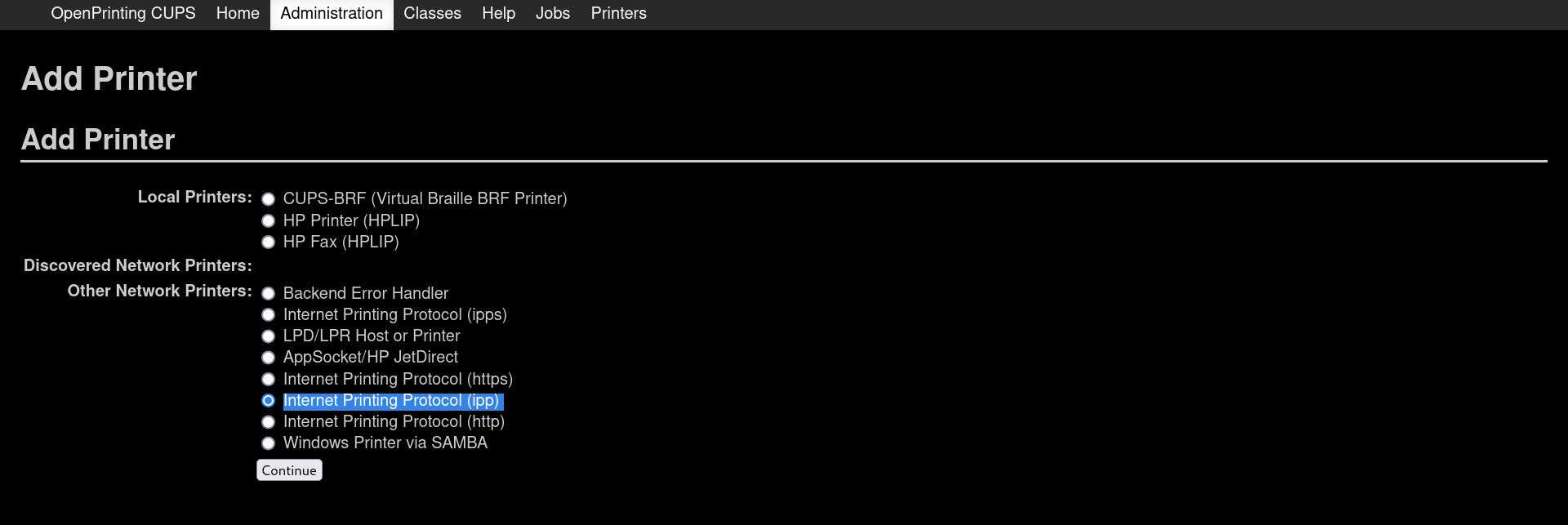
- Enter the url as
http://192.168.18.1:631/printers/name_of_printer. Replacename_of_printerwith the name you noted down earlier from the router's gateway. - Choose the manufacturer of your printer. On the next page choose the correct model and try printing a test page.
- Your printer should be working.